Free YouTube Thumbnail Templates (+ Free Safe-Area Overlay)

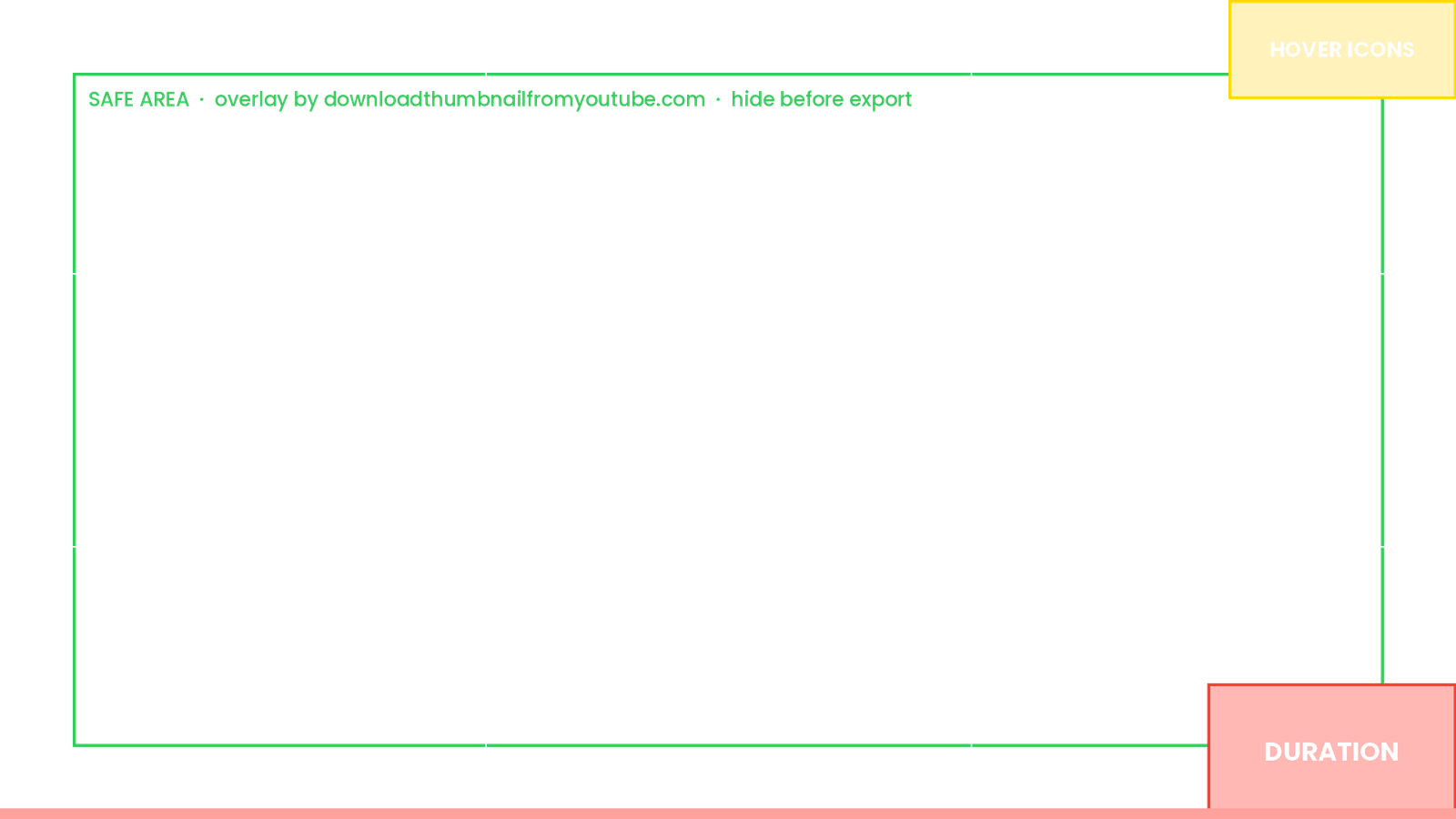
Quick answer: The best free YouTube thumbnail templates come from Canva (search “YouTube Thumbnail”), Adobe Express and free PSD files you can open in Photopea. Whatever you use, start with a 1920 × 1080 or 3840 × 2160 canvas and keep text out of YouTube’s covered areas. Download our free safe-area overlay PNG below and place it as the top layer of any template to see exactly where the duration badge and hover icons will sit.
Key Takeaways
Free download: YouTube thumbnail safe-area overlay
A transparent 1920 × 1080 PNG with the rule-of-thirds grid, a safe area, the duration badge zone, the progress-bar strip and the desktop hover-icon zone. Put it on top of your design, check placement, then hide it before exporting.
Download the safe-area overlay (PNG, 1920 × 1080)
Free to use in your own and client work. A link back is appreciated if you share it.

Where to find free templates
| Source | Format | Good for | Note |
|---|---|---|---|
| Canva | Canva editor | Beginners, quick edits | Some elements are Pro-only (marked with a crown) |
| Adobe Express | Express editor | Clean, modern styles | Free tier available |
| Photopea templates | PSD in browser | Full layer control | Open any PSD free |
| Free PSD sites | PSD | Photoshop/Photopea users | Check the licence before commercial use |
| Your own template | Any | Consistent channel style | Best long-term option |
How to use a template without looking generic
- Change the colours to your channel palette. See best colours for thumbnails.
- Use your own photo, not the template’s stock image.
- Cut the text to three words or fewer; see how much text.
- Swap the font for the one you use on every video.
- Check the layout against the six patterns in thumbnail layout ideas.
Build your own reusable template
In Canva
- Create a design at 1920 × 1080 (or use the YouTube Thumbnail preset).
- Set up your background, text style and a placeholder photo frame.
- Upload our overlay PNG as the top element while designing; delete it before downloading.
- Share › more › Template link (or duplicate the design for each new video).
In Photopea or Photoshop
- New file, 1920 × 1080 px, 72 ppi, RGB.
- Groups: Background, Subject, Text, Overlay.
- Save text and outline styles; put the overlay PNG in the top group and hide it on export.
- Save as PSD. For each video, duplicate the file and replace the subject and text.
Compare the tools in Canva vs Photoshop vs Photopea.
Template checklist
| Check | Target |
|---|---|
| Canvas | 16:9, 1920 × 1080 or larger |
| Text zone | Inside safe area, not bottom-right |
| Subject slot | Room for a cut-out with outline |
| Styles saved | Text stroke, subject outline, colours |
| Export | JPG under 2 MB for mobile upload |
Reference before you design
Before choosing a template, save the top thumbnails for your topic with our thumbnail downloader. A template that looks great in isolation can look identical to everyone else’s in your niche.
Coming soon on DownloadThumbnail: a free online thumbnail template tool with layouts, the safe area and grid guides built in. The overlay above is the first piece of it.
Frequently asked questions
Are Canva thumbnail templates free?
Many are. Templates or elements marked with a crown need Canva Pro.
Can I use free templates for client work?
Check each template’s licence. Our safe-area overlay is free for personal and client work.
What size should a thumbnail template be?
16:9, at least 1280 × 720. 1920 × 1080 or YouTube’s recommended 3840 × 2160 gives more room to edit.
How do I use the overlay PNG?
Place it as the top layer, line up your design, then hide or delete it before exporting.